Showing posts with label Analytics. Show all posts

Blogger and Analytics adjusted-bounce-rate

/ Friday, July 27, 2012 /
I've had interesting discussions with people about whether the bounce-rate in Google Analytics is worthwhile: one of my sites has information about local bus routes and neighbourhoods, and many visitors only need to look at one page (the one suggested by Google search) to get the information they need.  I've long believed that these people counted as a "bounce" (ie look at a page and leave), while friends assured me that Google is smarter than that and wouldn't count visits that last for a certain length of time as bounces.

I've just discovered that I was right after all: by default, Analytics counts all one-page-only visitors as bounces.

Google have now told us how to change this, and not count visitors as bounces if they stay on the site for a certain length of time (we can choose how long)

Unfortunately this option isn't fully available to Blogger users at the moment. We can either


1)  Install Analytics in a way that it works properly with dynamic and mobile templates,

Thsi approach will most likely be supported if Blogger invent any other types of templates in the future, so is what I recommend now.  GreenLava explains how to do this here. 


OR


2) Install the Analytics code in the same way it gets put into other websites.

This won't count visitors who view the blog using a dynamic template (either because you choose one or because they added a command to your URL in order to see your blog that way).
And if you have enabled a mobile template, it will only count visitors using mobile devices if you have:

  • Installed the Analytics code using an HTML/Javascript gadget (I've explaiend how to do this here)
  • Edited your template so that gadget is "shown" on mobile templates (by default, HTML/Javascript gadgets aren't - I've explained how to change this near the end of this article)


So at the moment, our options for Blogger are to either count visitors properly and not see the adjusted bounce-rate, or undercount the visitors but get the custom-adjusted bounce rate.

Content Experiements in Analytics

/ Monday, June 4, 2012 /
Content Experiments is a new feature in Google Analytics.

It claims to
helps you optimize for goals you have already defined in your Google Analytics account, and can help you decide which page designs, layouts and content are most effective.

I'm not sure how possible it will be for Blogger users to use it - suspect that it may need some serious template editing at lease.

Sharing Google Analytics reports with other people

/ Friday, March 9, 2012 /
Google Analytics has added a Share button to

  • Custom Reports: (Actions menu on the table that lists your reports)
  • The dashboard: (top-left corner)
  • Advanced Segments: (Admin tab > Advanced Segments)

This a way to let you share reports etc that you've designed:  it works by giving you an  URL that you can email or publish in a blog-post.

When someone clicks on this URL, they go into Analytics, and a custom report - which is just like yours at the time you clicked Share and created the URL - is added to their own dashboard.

Effectively, what the other person sees is:

  • your report structure
  • showing their data


Analytics is hugely powerful, with far more features than your average blogger needs. Some blogger-helpers don't recommend it, just because it's so large (a bit like using Microsoft Word to edit a text file).

But it has a number of advantages over Blogger's built in Stats (including counts not being reset to zero every time that you edit and publish a post with an updated date/time - which is the way I give one of my blogs a home page).

It seems to me that this share-your-analytics-design feature opens up a large opportunity for people who really understand how Analytics works to help the rest of us find actionable information about what's happening on our blogs.   Do you know any Analytics gurus worth following?

Country-specific Blogspot URL may affect your earnings - and other things too

/ Wednesday, February 1, 2012 /
This week, Blogger announced they are redirecting blogspot.com blogs to country specific URLs.

This means that when someone in India looks at http://blogger-hints-and-tips.blogspot.com/, they will actually be directed to http://blogger-hints-and-tips.blogspot.in - and similarly for other countries, so far I know it's been applied to Australia and New Zealand too.

This is likely to have affects on other products:

AdSense:

If you have protected your AdSense ID from malicious use (and really, you should if you care about it), then you will find some new entries in your unauthorised sites list:   I just went into mine and authorised
  • blogger-hints-and-tips.blogspot.com.au 
  • blogger-hints-and-tips.blogspot.in
  • blogger-hints-and-tips.blogspot.co.nz
and I expect to be doing some more as it rolls out further.   

If I didn't do this, then any advertising "clicks" from people visiting via country-specific-URLs won't be counted.

(Interestingly, I tried using the authorise link beside the unauthorized links on the Home > Account settings page.   It said it worked, but those sites weren't actually added to my authorized list.  I had to add them to the Authorized list and click Save myself.)

Analytics:

I'm not sure yet if this has an impact on statistics gathered with Analytics.   Maybe not - my overall visitor numbers aren't down, and the Visitors > Map overlay tool shows that I've had 79 visits from India today.   

I do have some more checks in mind, but these will take a while to do - comments from anyone who has  investigated are very welcome.


3rd party statistics packages:

I don't know for sure, but would be surprised if this doesn't affect the stats gathered by SiteMeter, StatCounter, et al - at least in the short term.


Search


The way to check that you've got a canonical statement in your template is to 
  1. View the blog itself  (ie not the template, and not the posts)
    - eg I looked at www.blogger-hints-and-tips.blogspot.com in my browser, while I was logged off of Blogger.
  2. Look at the source code   (in Chrome, I get to it through the "wrench" in the top right corner, then Tools > View Source - or by using Ctrl / u)
  3. Check that this line is showing somewhere:    
    <link href='http://yourURL.blogspot.com' rel='canonical'/> 
If that line isn't in your source code, then the quickest fix is to either change to a newer template, or edit your template and add it just underneath the <head> statement.


That's all I can think of for now ... but I have a hunch there's more.    Will post again if I find more issues.

Analytics "old" interface to live a little longer?

/ Thursday, January 19, 2012 /
Back in Nov 2011, Google Analytics said that the "old" version would stop working in January.

However this week's announcement makes it sound like they're still workign on some key features, and so the deadline has been extended.

Also they're surveying for features that we use which aren't in the new version - even if you reported some before, it might be worth checking them now, and reporting them again.

How long does it take your average blog-page to load?

/ Monday, December 19, 2011 /
If you use Google Analytics on your blog, then you can get data about how fast your pages(*) load. This is seen in the the Site Speed report which was turned on for all users in mid November

Analytics have now published more information about what it contains, too.

Blogger users can't control some of the items that are shown (redirection time, domain lookup time, server connection time, server response time) - although you may like to keep an eye on them if you are concerned about whether the Blogger platform is suitable your blog/website.

But we do have a lot of control over page(*) download time. This is impacted by the size of our posts (especially the picutres and videos), and by the widgets that we use.

How much difference  page-load speed makes to you and your visitors (how many pages they view, and how likely they are to come back) depends on your niche and how impatient they are.

As with lots of web-statistics, there are no hard-and-fast rules. I recommend keeping an eye out for change.

  • For example, if adding a widget adds one second to your average load time, but there is no change to visitor numbers or pages per visit, you probably don't have an issue.
  • But if it adds 0.5 seconds and pages/visitor decreases by 50%, you might need to think about whether the widget is worth it, or whether you need to do something like only display it on the home page.


(*) These "pages" are not the same as so-called "pages" in Blogger: read more about the difference. LINK

"Old" Analytics interface will end in January 2012.

/ Tuesday, November 1, 2011 /
The "old" Google Analytics interface is going to be "sunset" in January 2012. fyi, "sunset" usually means "turned off".

(These days, I use a netbook quite often, so I really hope they have the problems with small screen sizes not displaying properly sorted out by then.)

Finding the Web Property ID & tracking code for an existing Google Analytics profile

/ Saturday, October 15, 2011 /
This article shows how to find the Google Analytics Web Property ID for a website that you have previously set up in Analytics.


Google Analytics and websites

Previously, I've explained how to set up Google Analytics for blogs made in Blogger, and shortly I'll be releasing another article about how Analytics is affected by the recently introduced dynamic templates and mobile blogger templates.

But if you have already set up Analytics on for your site, then you may need to find your Analytics Web-property-ID and/or tracking code..


Analytics:  New vs old interfaces.
Like Blogger, Analytics has a new interface coming.  You get to their with the "new version" link, in more-or-less the same place as Blogger's "switch to new interface" link.   However the new-look Analytics still has the word Beta (meaning "still being tested" in its logo), so for now these instructions apply to "old Analytics". I'll update them when the time seems right.


How to find your Web Property ID

1    Log in to Analytics, using the Google account that owns the Analytics profile that you want to get the ID for.

2    Choose the Analytics Settings tab
Currently the link for this is in the orange stripe at the top left, just under the Analytics logo.

3   Find the entry in the list for the Analytics profile that you need the profile for:

Each profile has two rows:  the top one lists the URL of the site and profile ID, while the 2nd one has the name you have given the profile, view report-link, some statistics, and links to edit or delete the profile.

Only 10 profiles are listed on the screen, so if you have set up more profiles than that, you may need to use the "next page" links at the bottom right of the screen.if you have set up Analytics for a few different sites, you may need to

The web-property-id is shown beside URL address of the website that the profile is for, like this:


How to get your Analytics tracking code 

Follow the steps above for finding your web profile ID.

Click the Edit link in the row for the profile you are interested in.

This takes you to the Profile Status screen.

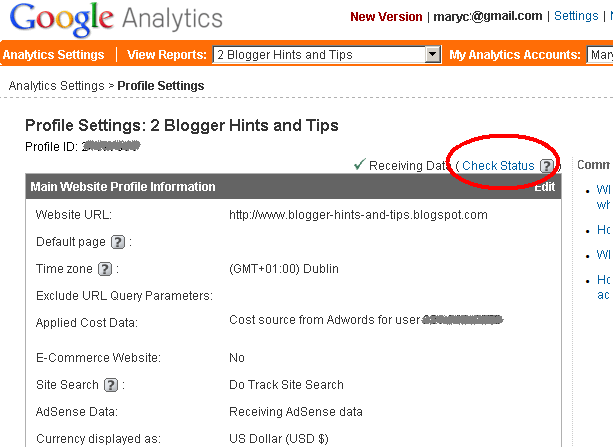
Click the Check Status link near the top-right side of the profile display.


This opens the Profile Settings screen, which you can copy and paste your code from.

(This screen also has an Advanced tab, which covers options that are not relevant to the vast majority of Blogger users, so will not be covered here.)


If you use AdSense as well:

If you use Analytics to track your AdSense performance as well, then you may also need to get the code to enable to this.    To find this code

  • Go back to the Profile Status screen (listed above)
  • Click the Edit link (in the grey bar, just underneath the Status link)

This opens the Edit Profile Information screen, where you can edit various characterisitcs.  Your AdSense code, which should be put just before or after the other Analytics code, is shown at the bottom of the screen.


Next:
If you haven't used Analytics on your blog previously, see setting up Google Analytics for your blog for advice about where to put your code in Blogger.

If your blog is made in Wordpress, then I understand that you cannot install the HTML directly, you will need to locate a suitable 3rd party plugin that you can add your code and or web-property to.


Related Articles: 


Understanding Google accounts

How the data in Blogger is organised

AdSense and AdWords - understanding the difference

Installing 3rd-party HTML into your blog

Setting up Google Analytics for your Blog

Setting up Google Analytics for your blog

/ Sunday, May 8, 2011 /
This article shows how to add Google Analytics to your blog.

Google Analytics and Blogger

Google Analytics is one option if you want more detailed statistics about your blog than you can get from Blogger's Stats tab.  It provides more features than most bloggers need, but it can be handy to use it from the beginning anyway, so that you have historical data when you do eventually want more detailed statistics.

It works by running a small script each time that a person views a screen from your blog:  this reads some information about the person, their computer and what content they looked at, and adds it to a statistical database that you (and Google) can get reports from.  It only collects data (number of visits, length of time spent, etc) from when the script is installed into your blog.  Initially you had to install the code yourself, but a change that Blogger made in October 2011 made this a lot easier.

Now, to install it into your blog, you simply have to:
  • Set up a profile for your blog in Analytics
  • If your blog uses Dynamic Views or has a Mobile template enabled (*)  (either all the time, or as an option):  put the Web Property ID you get assigned in Analytics into your blog's options, AND
  • Put the tracking code into your template, AND
  • Save the changes that you have made to your profile  (be careful - it's easy to forget this step!)

(*)  At the time of writing (15 Oct 2011) the help materials weren't 100% clear about the status of mobile templates.   My best guess is that you should install the Web-Property-ID anyway, just in case.   But I will update this article if I find any more information.


How to set up an Analytics profile:

1   Log in to Analytics, using the Google account that you want to do reporting from.    (If you're already logged in to Google when you go to that page, you may need to click the blue Access Analytics button).

This doesn't have to be the same account that owns or even has administrator rights to the blog that's being analysed - so long as you can figure out how to copy some code from Analytics into the blog.)   Personally, I keep my Analytics statistics in the same account that I use for AdSense and AdWords.


2   From the Analytics Settings tab, choose Add New Profile  (currently it's a link on the right hand side of the page)

3   Choose Add a Profile for a new domain  
(I'm assuming that anyone reading this article doesn't already have a profile to be extending.)


4   Enter the name of your blog (including the www at the beginning of the URL), and press Continue

In the next steps, you need to copy two different items from this screen.   So it's best if you leave this open, and switch to another screen to continue.


Putting the Web Property ID into your options:

5   Copy the Web-property-id from the top section of the screen:

6   Add ito your blog:

In Blogger-2011 (ie the new interface):

  • Go to Settings > Other
  • At the bottom of the screen, you will find a field for Google Analytics account number - paste the value you copied into this field
  • Click Save Settings at the top of the screen

(NB  If your screen is like mine, it will be hard to see the field - due to the "subtle" screen design that Blogger have chosen.   But it is there, and may show up better if you tilt your screen a little.)

In Blogger-pre-2011 (ie the old interface)

  • Go to Settings > Basic
  • Two thirds of the way down the screen, you will find a field for Google Analytics account number - paste the value you copied into this field
  • Click Save Settings at the bottom of the screen


How to add the Analytics code to your site

Analytics is used by many people running websites built with all sorts of tools, so the standard installation instructions are very general:
Copy the following code, then paste it onto every page you want to track immediately before the closing </head> tag

The Previous Instructions given by Analytics:
The detailed instructions link in Analytics leads to the appropriate section in the Analytics help-centre.  At one stage, this had a link to Blogger-specific instructions, but this seems to be gone.   But I'm pretty sure that it said to find the  <body> tag and paste the code from Analytics immediately after it.   This still works, but it's harder to describe now, because some templates put other content in the body statement, and you need to locate the place after the angle-bracket ">" that closes the <body statement.

Searching the help-centre for "blogger" shows various articles, including some that tell you to put the code into your template just before the closing </head> statement.    Some of these remind you to download a full copy of your template before making changes to it - and none of them warn you about the disadvantages of editing your template.


Another Alternative:
An alternative suggested by Google engineers in some places is to install the tracking code into a HTML/Javascript gadget - this is Option 1 in ways to install 3rd party HTML into your blog.

A major advantage of this approach is that your statistics won't be interrupted if you change templates:  remember that changing templates keeps your gadgets (though it sometimes moves them around), but deletes any template changes that you have made.

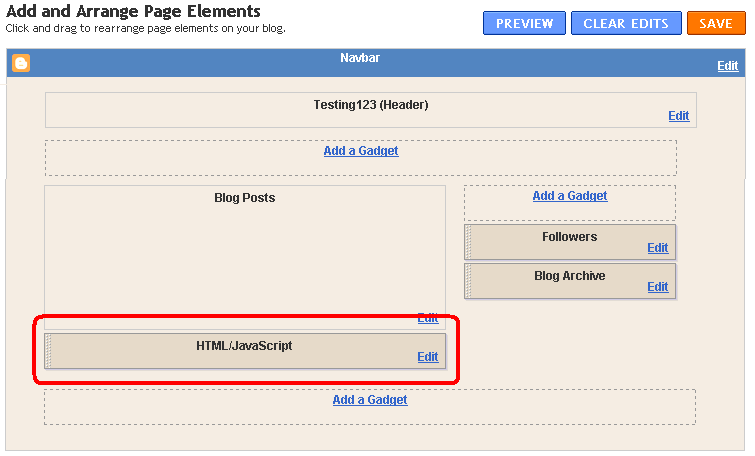
You do need to decide where to put the gadget:  it doesn't actually show anything on the screen (except perhaps a small space that looks blank to your readers), but visitors to your will be "counted" when the gadget runs:  if your blog page takes a long time to load, and your gadget is in the footer, then visitors who don't wait for the entire page to load before clicking away won't be counted.  Personally, I like to put the gadget immediately under the Blog Posts gadget, like this:

Blogger Page Elements design screen, with area under the Blog Posts gadget highlighted

IMPORTANT:  Don't forget to press the orange Save button after your have shifted the gadget to where you want it to go.


After the code is installed, it takes a little time (maybe even 24 hours) for tracking to start.   Once it's started, you can get reports by selecting the profile from the View Reports drop-down in the Analytics application.


Related Articles: 


Advantanges and disadvantages of editing your template.

Planning changes to your blog's template

Advertising on your Blog:  some things to consider

How the data in Blogger is organised

Blogs, bloggers and Blogger, Post, Pages and Screens - some basic concepts

AdSense and AdWords - understanding the difference

Using Google Analytics to get statistics about AdSense performance on your blog

/ Tuesday, April 26, 2011 /
This article is about how to set up your blog so it collects data about your AdSense performance, using Google Analytics.

Google Analytics and AdSense


Recently, I described options for installing Google Analytics into blogs made with Blogger.

If you have decided to use Analytics, and you are also a Google AdSense publisher (ie person who has AdSense ads on your blog), then you probably want to take one more step, so that you can get statistics about AdSense on your blog from the Analytics tools.


Installing the extra code


After you have created a profile in Analytics, and installed the Analytic settings into your blog, go back to the Analytics Settings tab in Google Analytics.

If you have left the profile, find it and click Edit Profile (currently this is on the right of the screen).

The Profile screen that opens has sections for
  • Main Website Profile Information
  • Goals
  • Filters Applied to Profile
  • Users with Access to Profile
Currently the edit action for each section is in the right hand corner of the heading for the section.   

Click Edit in the title for the Main Website Profile Information section.

At the bottom of the screen, tick Yes, this profile should receive AdSense data

When you tick the button, a window with some code opens.   Copy the code.

Press the Save Changes button  (currently bottom left of the screen.

Install the code you into your blog either in the header or in a HTML/Javascript gadget.

What you and your readers will see


Installing this script has no effect on what your readers see.

But when you go into Analytics and look at any detailed report page, you will find that the AdSense Revenue tab will start to have data in it.   Currently the statistics that are reported are (even if there was no revenue) are:
  • AdSense Revenue
  • The number of AdSense ads that were clicked.
  • AdSense Page Impressions ie the count of of pages displaying AdSense ads that were viewed
  • AdSense CTR, ie the ratio of AdSense ads clicked to ad pages viewed.
  • AdSense eCPM, ie the estimated revenue from AdSense per thousand ad page views (assuming that future viewers and advertisers behave in a similar way to the previous one).

Data is only collected from the time that you installed the code into your blog:  Google does not collect it (at least not in a form that's accessible to you) until you ask them to.

Detailed advertising performance data is only available through Analytics for AdSense:  it's not available for the Google Affiliate Network and most certainly not for competing ad-services like Chitika.


Related Articles:


Installing Google Analytics for your blog

Advertising on your Blog:  some things to consider

AdSense and AdWords - understanding the difference

Putting Chitika ads into your blog

Understanding Google accounts

Adsense: how to stop malicious use of your AdSense account

Labels

Thank you for visiting my site. I’m the author of home decor help, home garden decor, home design interiors, tina 4 home design, uhozz, visit yogurt lab, sitazine, is beauty tips and sunnijati website. Modestop Topmodest Free Beauty Tips Shitazine Sitahouseblog Izhealthy Shitadesign Sitahouse Topmodest Sitazine Irezine Home- decor-design Shitadesign Shitadesign-dot-com Inhomeland inhouseland ghiuldenika inebautystyle enterarteiuna radiodominiopublico biberealexandru fabiobernadosdi geeklore31 syahadah-alhafeezah peaceloveiman bigwideempty techandchefadventures kaosgunlugu fikirkulubleri duazinciri theinternationalrules morefortngintn monkeymanzach lifeatthegreenys photokid84 chelsea-settles chasingmommyhood sexyhotactresseswallpaper tophotnewstodays avvani urbantrendsussex voychic reisyamode sitazine reportmy homedesignideasx mystylepinterest fashionstyleco popularnewstips isexy-hot-girls sexywomengirl trendymodeku derumahdesign womenhairs hackoblogger gadiswomen homeinteriordesignideas1s homedesignideasa uniquehomedesignsw enterpreneurforbloggers earningblogtipss lilyandgiasmom onfeatureblog aboutadsen onblogsocial tecnologiku onlinekutip akuhub caramakemoney youseoneed blogukus newbieblogit adsenseguideto triond-adsense inseoservice intipseoblog otherseoblog freeseoguid seoblognets tawaguideblog seosecretip buzdesign modewomen gayawoman cantikide tipsehat bebeautyps tipsjilbabcantiks idekontenislami healthfitnessnutritionsz jilbab-tips tips-home-decor caramemakaijilbabv beritaremajaterkinie allisoncrewnews mypinspinterest mypinspinterest gogirlsgallery seyhotgirls topmodest worldotgirls seksigirlsblog yourgirlsnet sexywomensia decorativehousedesigns simplebloggertipsz aboutadsense09s marketingner freeseotipstricksz womensiana chicstylegallery oblogkudewe colhomegallery marketserve onlibusiness artodesign designinguide oninteriorhome interiormu intutorblog blogoffeed newbloggerhint enginseo dibisnistips internetmublog onroomdesign homegardenco
 
Copyright © 2010 New Blogger Tips, All rights reserved
Design by DZignine. Powered by Blogger